
AI Image-to-3D Model for 3D Printing
How to turn photographs into printable 3D models using AI generators like Meshy 6 and Bambu Lab MakerWorld, and what to do with the mesh before it hits the printer.
What Is AI Image-to-3D?
AI 3D model generators use neural networks trained on millions of 3D shapes to infer depth, geometry, and surface detail from flat images. Single-image tools like Meshy 6 analyze one photo and reconstruct a full 3D mesh by predicting the unseen sides of the object. Multi-view approaches ask for 2-4 photos from different angles and produce more accurate geometry because the AI has more data to work with. Bambu Lab's MakerWorld integrates directly with their slicer ecosystem, reducing friction between generation and printing.
The underlying technology typically combines diffusion models (for generating novel views) with neural implicit representations or transformer architectures that output triangle meshes or point clouds. The result is an OBJ or GLB file with vertex colors or a UV-mapped texture. Quality varies significantly depending on the input image, the complexity of the object, and the specific AI model used. Simple, well-lit objects with clear outlines produce the best results; complex assemblies with thin features or internal structures remain challenging.
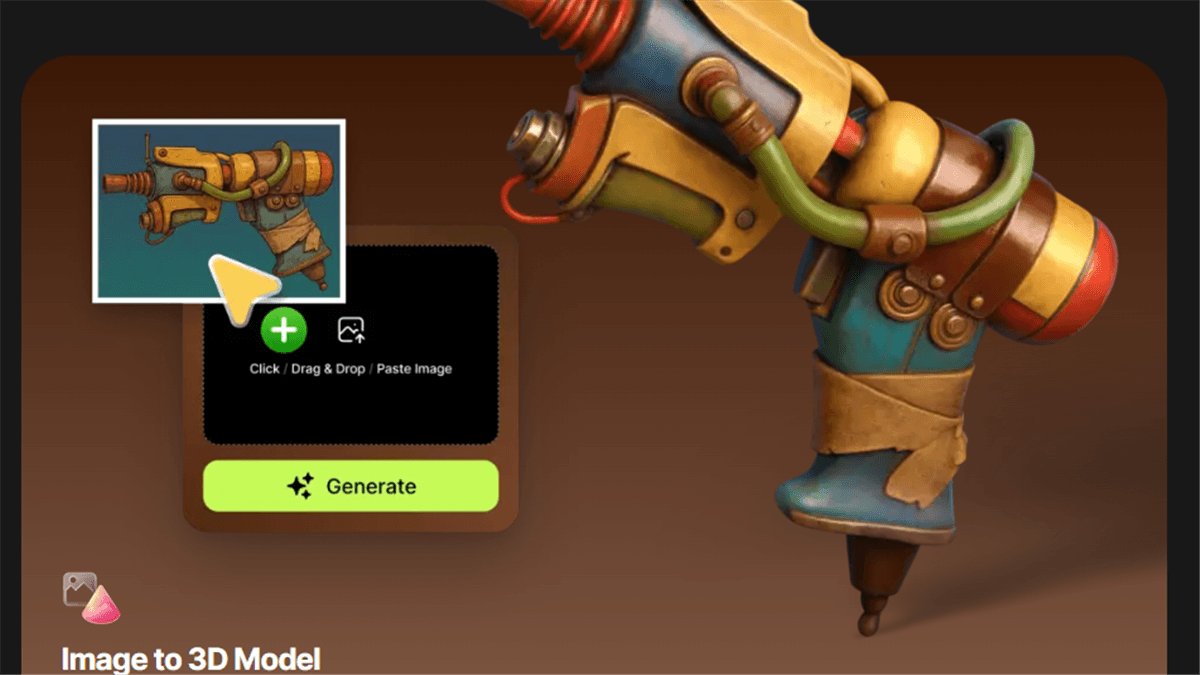
Preparing Images for Best Results
The quality of your AI-generated 3D model depends heavily on the input image. Use even, diffused lighting with no harsh shadows, shadows confuse depth estimation and create phantom geometry. Photograph the object against a plain, contrasting background (white or neutral gray works best). Ensure the entire object is visible with no cropping, and shoot at a slight three-quarter angle rather than straight-on to give the AI more depth cues.
Resolution matters: aim for at least 1024 x 1024 pixels with the object filling most of the frame. Avoid motion blur, heavy compression artifacts, and reflective surfaces that create specular highlights. For multi-view generation, keep the lighting consistent across all shots and rotate the object (or camera) in roughly 90-degree increments. Remove distracting background elements, many AI tools perform automatic background removal, but a clean input produces cleaner geometry from the start.
From AI Mesh to Printable Part
AI-generated meshes almost always require cleanup before printing. Import the mesh into a repair tool such as Meshmixer, MeshLab, or the built-in repair functions of PrusaSlicer or Bambu Studio. Check for non-manifold edges, inverted normals, self-intersections, and open holes, these defects cause slicers to generate incomplete or failed toolpaths. Most repair tools can fix these issues automatically, but inspect the result to ensure no critical features were altered.
After repair, verify wall thickness. AI models frequently produce walls thinner than the printable minimum (1.2 mm for FDM, 0.5 mm for mSLA). Use a wall-thickness analysis tool to identify thin regions and thicken them manually or by applying a uniform offset. Scale the model to your desired print size and check that small details survive at that scale. Finally, orient the part for minimal supports, slice with appropriate settings for your technology, and review the layer preview before sending to the printer. AI-generated models with organic surfaces print particularly well on mSLA printers, where 0.025-0.05 mm layers capture every nuance of the AI's output.
Frequently Asked Questions
How good is the quality of AI-generated 3D models?
Quality depends on the input image and the AI tool used. Simple objects with clear geometry produce surprisingly accurate meshes. Complex parts with thin features, internal cavities, or mechanical interfaces usually need significant manual cleanup or should be modeled in CAD instead.
What file formats do AI 3D generators output?
Most tools output OBJ, GLB, or STL files. OBJ and GLB include texture and color data; STL contains only geometry. For 3D printing, you need the geometry, export or convert to STL or OBJ and import into your slicer.
Can I use AI-generated models commercially?
Licensing varies by tool. Meshy's paid plans permit commercial use of generated models. MakerWorld hosts community-shared models under individual creator licenses. Always review the specific terms of service for the AI tool you use before selling products based on generated models.
Is AI generation cheaper than hiring a CAD designer?
For visual or decorative objects (figurines, art pieces, organic shapes), AI generation is dramatically faster and cheaper. For functional parts with precise dimensions, tolerances, and mating features, professional CAD modeling remains necessary because AI tools do not produce dimensionally accurate engineering geometry.
Which 3D printing technology works best for AI-generated models?
mSLA resin printing excels because AI models are typically organic and highly detailed. The 0.025-0.05 mm layer resolution captures surface nuances that FDM at 0.15-0.20 mm would lose. For larger decorative prints where fine detail is less critical, FDM with a 0.10 mm layer height is a cost-effective alternative.
Print Your AI-Generated Model
Upload your AI-generated STL or OBJ file and get an instant quote. We handle mesh repair automatically during quoting.
Get Instant Quote